Why Your Azure Monitor Workbook Shows No Data Even With the Right Permissions
In this article

A user opened an Azure Monitor Workbook and saw “No direct results.” The user had Monitoring Reader on the Log Analytics workspace. The data existed. 45 million rows of firewall logs, sitting right there. Another workbook in the same resource group, built on the same workspace, worked perfectly for a different user with similar permissions.
I spent an afternoon figuring out why. The answer was not about roles, not about workspace configuration, and not about KQL syntax. It was about a field buried inside the workbook’s JSON that changes how Azure evaluates permissions entirely.
The Symptom
The setup looked correct. The user had Monitoring Reader assigned at the workspace scope. The workspace access control mode was set to the default “Use resource or workspace permissions.” The workbook resource lived in the same resource group as the workspace. Opening the workbook worked fine. The UI rendered, the tiles loaded, and every single query tile came back empty.
No error message. No access denied. Just “No direct results” on every panel.
The confusing part: a second workbook, also in that resource group, also querying the same workspace, returned data for a different user who had an almost identical role assignment. Same workspace, same data, same role. Different result.
The Two Access Contexts Nobody Tells You About
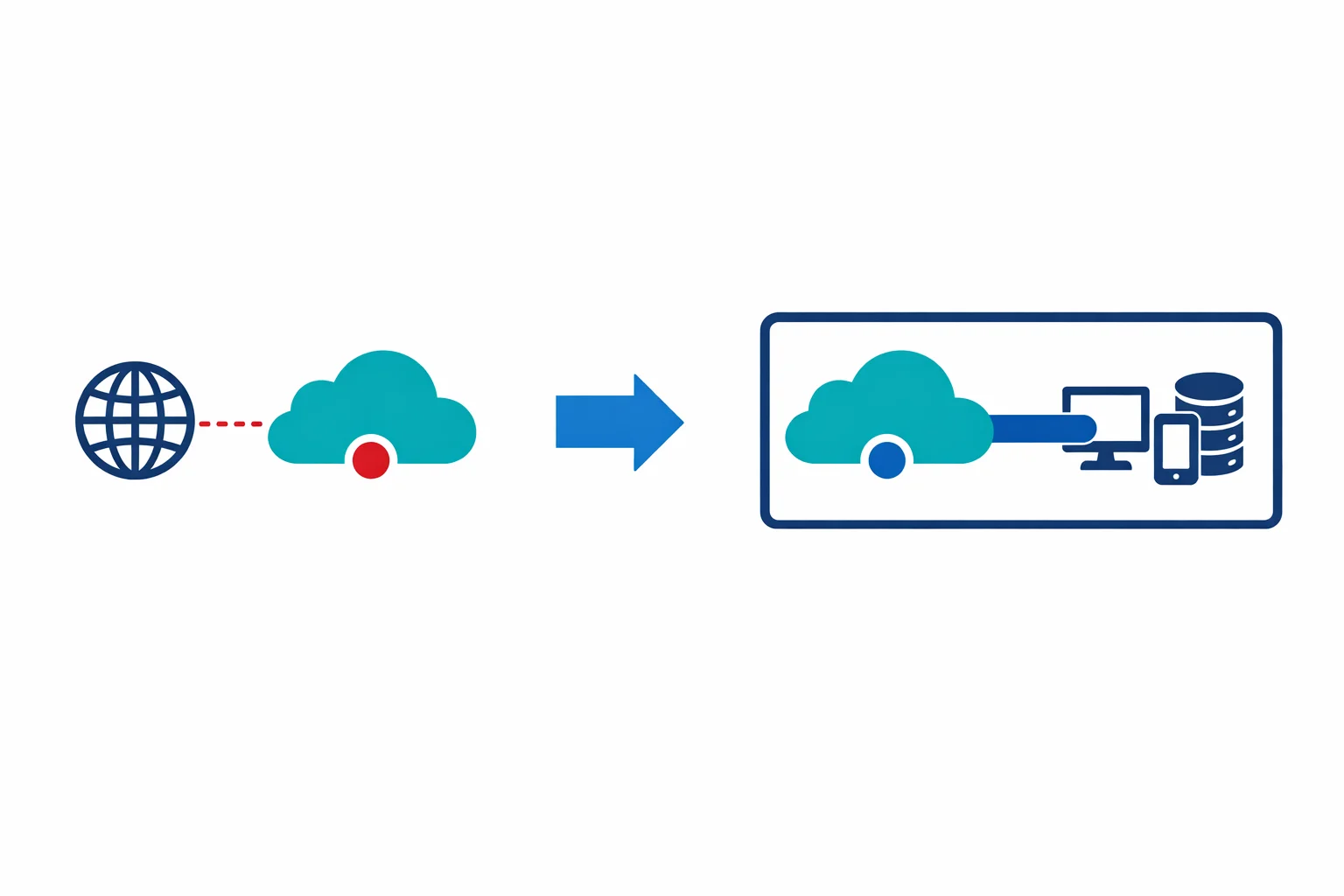
Azure Monitor Workbooks execute KQL queries in one of two contexts. Which context applies depends on how each individual query tile is configured inside the workbook’s JSON definition. Not on the workspace. Not on the user’s role. On the tile.
Workspace-context queries have their resourceType set to microsoft.operationalinsights/workspaces and their crossComponentResources pointing to a workspace resource ID. When a query runs in this context, Azure checks the user’s permissions on the workspace. Monitoring Reader on the workspace is sufficient. The query runs, data comes back.
Resource-context queries have their resourceType set to something like microsoft.network/azurefirewalls, microsoft.compute/virtualMachines, or any other Azure resource type. The crossComponentResources field points to that resource’s ID. When a query runs in this context, Azure checks the user’s permissions on that specific resource. Workspace permissions are completely ignored. It does not matter if the user is Owner on the workspace. If they lack Reader on the target resource, the query returns empty.
The workspace access control mode setting, “Use resource or workspace permissions,” sounds like it means “either will work.” It does not. It means: for workspace-context queries, workspace permissions apply. For resource-context queries, resource permissions apply. The “or” in the setting name is about which context the query uses, not about giving the user a choice. Microsoft documents this distinction in their access control overview, but I have never seen a workbook author consider it when building tiles.
What I Found
I exported both workbooks as JSON and compared the query tiles side by side.
The broken workbook had every KQL tile configured like this:
{
  "resourceType": "microsoft.network/azurefirewalls",
  "crossComponentResources": [
    "/subscriptions/.../resourceGroups/rg-networking/providers/Microsoft.Network/azureFirewalls/fw-prod"
  ]
}
The firewall resource lived in a different resource group from the workspace. The user had no Reader role on that firewall. The workbook itself opened fine because the user could read the workbook resource. But every KQL query ran in resource-context against the firewall, Azure checked the user’s permissions on the firewall, found none, and returned empty results. No error, no access denied banner. Just silence.
The working workbook had its tiles configured like this:
{
  "resourceType": "microsoft.operationalinsights/workspaces",
  "crossComponentResources": [
    "/subscriptions/.../resourceGroups/rg-monitoring/providers/Microsoft.OperationalInsights/workspaces/law-prod"
  ]
}
Same KQL queries. Same underlying data. Different resourceType, different crossComponentResources, different permission check path. Workspace permissions applied, and the user saw results.
The Bonus Finding: Legacy KQL Categories
While fixing the query context, I noticed the KQL itself had a second problem. The queries filtered on Category == "AzureFirewallNetworkRule" and parsed the msg_s field with parse operators to extract source IPs, destination ports, and actions. That is the legacy AzureDiagnostics schema.
The firewall in question was configured with resource-specific diagnostic settings. Under resource-specific logging, the category name is AZFWNetworkRule, not AzureFirewallNetworkRule. The data lands in a dedicated table with structured columns like SourceIP, DestinationIp_s, and Action_s instead of a single msg_s string that needs parsing.
The category filter would never have matched, even with correct permissions. The “no data” was doubly wrong: wrong permission context AND wrong query schema. The permission problem masked the schema problem completely. If someone had “fixed” the access by granting Reader on the firewall, the queries still would have returned nothing, and the debugging would have continued in circles.
The Fix
I changed the workbook’s KQL query tiles from resource-context to workspace-context:
resourceType: changed frommicrosoft.network/azurefirewallstomicrosoft.operationalinsights/workspacescrossComponentResources: changed from the firewall resource ID to the workspace resource ID
The KQL queries themselves stayed the same (after fixing the category filter separately). The data was always in the workspace. Only the permission check path changed. The entire fix took five minutes once I knew what to look for.
The One Thing You Cannot Fix: Metric Tiles
Metric tiles (type 10 in workbook JSON) always require resource-context. Metrics are read from the Azure resource directly, not from Log Analytics. There is no workspace-context option for metrics. Users need at least Reader on the source resource for metric tiles to render.
The only workaround is replacing metric tiles with KQL-based tiles that query metric data from the workspace. That requires the source resource to have a diagnostic setting that sends metrics to Log Analytics, which is a separate configuration step that many environments skip. If the metrics are not in the workspace, you are stuck granting Reader on the resource.
How to Debug This Yourself
When a workbook shows “no data” for a user who has workspace permissions:
- Export the workbook JSON from the Gallery menu (three dots, then Download)
- Search for
resourceTypein each query tile - If the value points to anything other than
microsoft.operationalinsights/workspaces, that query runs in resource-context - Check
crossComponentResourcesfor the resource ID. That is the resource Azure checks permissions against - Either grant the user Reader on that resource, or change the tile to workspace-context if the data is also in the workspace
Step four is the critical one. crossComponentResources is the smoking gun in every “no data” workbook investigation I have seen. It tells you exactly where Azure is checking permissions, and it is never visible from the workbook UI.
What I Took Away
The “Use resource or workspace permissions” access control mode is the most misleading setting name in Azure. It does not mean “either path works for the user.” It means “the query context determines which path Azure uses, and the user gets no say.”
Monitoring Reader includes */read at the assigned scope, which covers workspace query permissions. The role was never the problem. The query context was. And the only way to see the query context is to export the workbook JSON and read the tile configuration directly.
If you are building workbooks for users who do not have broad Reader access across resource groups, default every KQL tile to workspace-context unless you have a specific reason to use resource-context. Your future self will thank you when the access tickets stop arriving.
For related reading on workspace architecture and how data flows into Log Analytics, see the Sentinel ingestion cost control post.
Need help with your Azure security posture?
We help enterprises design and tune Azure security controls: WAF policies, Sentinel ingestion, Defender for Cloud, identity governance, and NIS2/DORA readiness.
More from the blog

Azure Firewall in 2026 and When Standard, Premium, or an NVA Is the Right Call

Shared vs Separate Azure Hubs for Regulated Workloads Under NIS2 and DORA